---
title: Enify Start I Using Elements and Running
description: After installing Enify, choose a layout, then create Elements to link your documents, apps, or information folders. Here's how to start.
---
[Skip to content](https://help.enify.io/enify-start-using-enify-functionality#main-content)
[Send a ticket](https://help.enify.io/kb-tickets/new?hsLang=en)
[](https://help.enify.io?hsLang=en)
Open main navigation
Close main navigation
- [Send a ticket](https://help.enify.io/kb-tickets/new)
- [Go to Enify homepage](https://enify.io/)
[Go to Enify homepage](https://enify.io/?hsLang=en)
How can we help?
- There are no suggestions because the search field is empty.
1. [Enify I Help Center](https://help.enify.io/?hsLang=en)
2. [Archive](https://help.enify.io/archive?hsLang=en)
April 25, 2025
# Enify Start I Using Elements and Running
## After downloading the Enify app and selecting a layout, you can begin using Running to create Elements. Elements include links to your documents, apps, or folders of information. Here's how to get started.
**🏳️Enify 2.0 (Current version)**
### **Here is an overview of Enify features:**
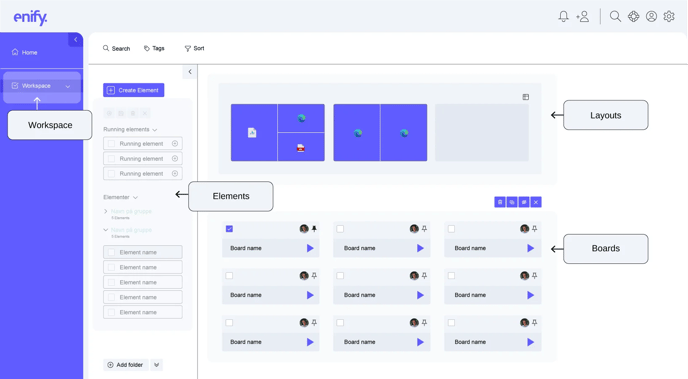
### Using drag and drop from Running or My Elements
**RUNNING:** Enify's "Running" feature mirrors your taskbar and displays all active applications. This feature enables team members to efficiently manage their digital workspace by dragging an application from the "Running" section to their preferred screen layout.
**Note**: Running elements need to be saved in Enify. This way, you can reuse them and include them on a Board.
**ELEMENTS:** "My Elements" also offers a customizable repository of essential resources. Whether it's a technical document, a specific interface within a web application, a crucial report, or a detailed 3D model, you can store links to these vital tools in Enify. This ensures that crucial resources are readily accessible and can be easily integrated into the workflow. To use a resource, choose it from the list and drag it onto your preferred screen layout, allowing Enify to display and enable seamless interaction.
**DRAG AND DROP:** By utilizing the drag-and-drop capability of Enify, teams can streamline their operational processes, allowing for a more organized, efficient, and effective approach to tackling complex tasks and projects.
### Utilizing your screens
Engineers operating in diverse screen environments, from compact single setups to extensive multi-display arrangements, will find Enify's screen management tools especially beneficial. Enify's flexible screen environments and layout options significantly enhance screen utilization efficiency. 
**LAYOUT:** Within the "Layout" section, effortlessly transitioning between various layouts is straightforward, allowing optimal application placement according to task requirements.
Even with Enify minimized to your taskbar, you can leverage its powerful layout functionality to streamline your workflow. Here are a few pointers to maximize your screen real estate:
Double-click the desired window's menu bar to focus on a single application in full-screen mode.
Exiting full-screen mode is just as easy—double-click on the window's menu bar again.
Enhancing your digital workspace further, consider creating and saving several boards for quick access to your most-used tools and documents.
Need assistance or have suggestions? Reach out via chat or [email](mailto:help@epsis.com). We're eager to support you.
---
**🏳️Enify Old Version**
**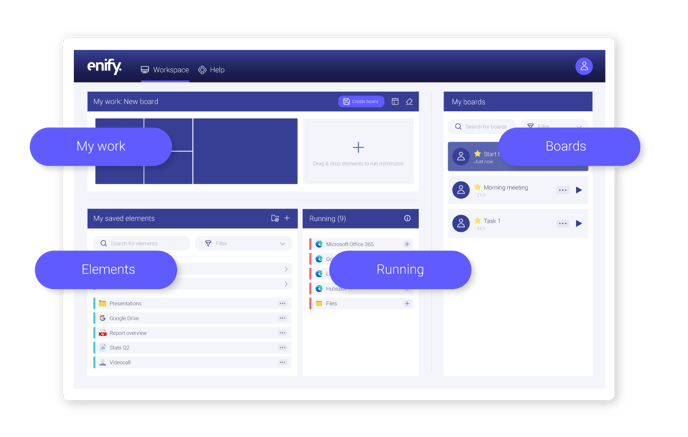**
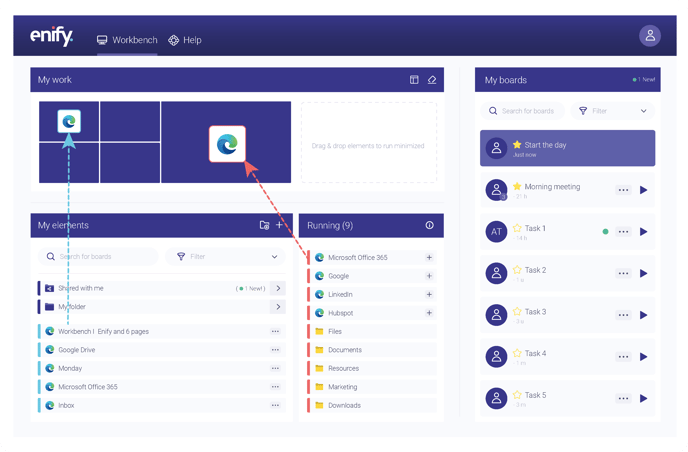
### Drag and drop from Running
### Drag and drop from "My elements"
*My elements* are links to what you want to open in your apps, regardless of platform. It can be a document, a view within a web application, a report, or a 3D view. Once you save the link within Enify, you know you can always find it within your workspace. To open it, all you have to do is find it in your list and drag it onto your chosen layout. Leave the rest to Enify.
### 
### Utilizing your screens
People's screen environment can be small and big, few or many. Using Enify screen environments and layouts enables you the possibility to enhance the way you work with your screens. Under *My Work*, you can easily switch between different screen environments and layouts. You can also move where you put your apps.
You can use your layout without having Enify on your screen (e.g., minimizing Enify on your taskbar). Here are some tips on how you use the functionality:
\- Change between windows opened and placed by Enify 💡 Shift + left mouse click the window menu bar
\- Use one application in full screen💡 Doubleclick on the window menu bar you want to expand
\- Exit full-screen mode 💡 Double-click on the window menu bar
To boost your digital experience, try saving some boards.
We are here to help! Send us a chat or an [email](mailto:help@epsis.com)- we would love to hear from you!
- [Getting started](https://help.enify.io/getting-started?hsLang=en#main-content)
- [First login and setup](https://help.enify.io/getting-started?hsLang=en#first-login-and-setup)
- [Your work in Enify](https://help.enify.io/your-work-in-enify?hsLang=en#main-content)
- [Feature walkthrough](https://help.enify.io/your-work-in-enify?hsLang=en#feature-walkthrough)
- [Workspace](https://help.enify.io/your-work-in-enify?hsLang=en#workspace)
- [Elements](https://help.enify.io/your-work-in-enify?hsLang=en#elements)
- [Screen management](https://help.enify.io/your-work-in-enify?hsLang=en#screen-management)
- [Boards](https://help.enify.io/your-work-in-enify?hsLang=en#boards)
- [Templates](https://help.enify.io/your-work-in-enify?hsLang=en#templates)
- [Search and tag elements and boards](https://help.enify.io/your-work-in-enify?hsLang=en#search-and-tag-elements-and-boards)
- [Smart functionality](https://help.enify.io/your-work-in-enify?hsLang=en#smart-functionality)
- [Enify Carousel](https://help.enify.io/your-work-in-enify?hsLang=en#enify-carousel)
- [User managment & Access](https://help.enify.io/user-managment-access?hsLang=en#main-content)
- [Users & Roles](https://help.enify.io/user-managment-access?hsLang=en#users-roles)
- [Permissions](https://help.enify.io/user-managment-access?hsLang=en#permissions)
- [Setup & Configuration](https://help.enify.io/setup-configuration?hsLang=en#main-content)
- [User access](https://help.enify.io/setup-configuration?hsLang=en#user-access)
- [Templates](https://help.enify.io/setup-configuration?hsLang=en#templates)
- [Screen Control](https://help.enify.io/setup-configuration?hsLang=en#screen-control)
- [Troubleshooting & Recovery](https://help.enify.io/troubleshooting-recovery?hsLang=en#main-content)
- [Screen management](https://help.enify.io/troubleshooting-recovery?hsLang=en#screen-management)
- [Account, Privacy & Legal](https://help.enify.io/account-privacy-legal?hsLang=en#main-content)
- [Privacy Policy](https://help.enify.io/account-privacy-legal?hsLang=en#privacy-policy)
- [Terms of use](https://help.enify.io/account-privacy-legal?hsLang=en#terms-of-use)
- [Subscription agreement commercial version](https://help.enify.io/account-privacy-legal?hsLang=en#subscription-agreement-commercial-version)
- [Archive](https://help.enify.io/account-privacy-legal?hsLang=en#archive)
- [Security and permissions](https://help.enify.io/security-and-permissions?hsLang=en#main-content)
- [Access to information](https://help.enify.io/security-and-permissions?hsLang=en#access-to-information)
- [Trial version Enify](https://help.enify.io/security-and-permissions?hsLang=en#trial-version-enify)
- [Log in](https://help.enify.io/security-and-permissions?hsLang=en#log-in)
- [Enify security](https://help.enify.io/security-and-permissions?hsLang=en#enify-security)
- [Your account in Enify](https://help.enify.io/your-account-in-enify?hsLang=en#main-content)
- [Add & remove users](https://help.enify.io/your-account-in-enify?hsLang=en#add-remove-users)
- [Add notification profiles](https://help.enify.io/your-account-in-enify?hsLang=en#add-notification-profiles)
- [Log out Enify](https://help.enify.io/your-account-in-enify?hsLang=en#log-out-enify)
- [Delete Enify account](https://help.enify.io/your-account-in-enify?hsLang=en#delete-enify-account)
- [Connection fail](https://help.enify.io/your-account-in-enify?hsLang=en#connection-fail)
- [Ticket](https://help.enify.io/your-account-in-enify?hsLang=en#ticket)
- [Customize my profile](https://help.enify.io/your-account-in-enify?hsLang=en#customize-my-profile)
- [User status](https://help.enify.io/your-account-in-enify?hsLang=en#user-status)
- [Release notes](https://help.enify.io/release-notes?hsLang=en#main-content)
- [Technical information](https://help.enify.io/release-notes?hsLang=en#technical-information)
- [Archive](https://help.enify.io/archive?hsLang=en)
- [Tips og Veiledning](https://help.enify.io/tips-og-veiledning?hsLang=en)
- [Pilot](https://help.enify.io/pilot?hsLang=en)
[](https://enify.no?hsLang=en)
by Epsis
© 2026 Epsis AS. All rights reserved.
Enify is a software platform operated by Epsis AS.
epsis.com
```json
{
"@context" : "https://schema.org",
"@id" : "https://www.epsis.com/#org",
"@type" : "Organization",
"name" : "Epsis AS",
"sameAs" : [ "https://www.linkedin.com/company/epsis" ],
"url" : "https://www.epsis.com"
}
```
```json
{
"@context" : "https://schema.org",
"@id" : "https://www.enify.io/#app",
"@type" : "SoftwareApplication",
"applicationCategory" : "BusinessApplication",
"description" : "Enify is a B2B SaaS platform for hybrid work, control rooms and AV integration.",
"name" : "Enify",
"operatingSystem" : "Windows",
"publisher" : {
"@id" : "https://www.epsis.com/#org"
},
"subjectOf" : [ {
"@type" : "Article",
"datePublished" : "2025-09-11",
"headline" : "A Software-Defined Approach to Control Rooms – Epsis Unveils Enify Control",
"publisher" : {
"@type" : "Organization",
"name" : "Sixteen:Nine"
},
"url" : "https://www.sixteen-nine.net/2025/09/11/a-software-defined-approach-to-control-rooms-epsis-unveils-enify-control/"
}, {
"@type" : "Article",
"datePublished" : "2026-02-09",
"headline" : "Installation Best of Show at ISE 2026 winners announced",
"publisher" : {
"@type" : "Organization",
"name" : "Installation"
},
"url" : "https://www.installation-international.com/business/ise-2026/installation-ise-best-of-show-winners-announced"
} ]
}
```